Log File Viewer Utility
The Log File Viewer utility (LogFileViewer.exe) is designed to ease the view of displaying items in a log file. It is used to open, print, and search/filter within log files, organized by configurable columns, for data to aid in troubleshooting.
The Log File Viewer utility is stored in the CygNet\Utilities directory (LogFileViewer.exe) on the host server. To start the utility, use Windows Explorer to browse to the directory and double-click the program icon.
Note: You can also set up this utility to be installed and launched (started) via CygNet Client Installer so that the application can be version managed. See Version Management for instructions on how to do this.
See the following sections below for more information:
Toolbar Menu Options
The Log File Viewer utility contains three options on its toolbar menu that are relevant to the utility. The following table lists and describes the menu options.
| Option | Description | Toolbar Icon |
|---|---|---|
| File Menu | ||
|
Open... |
Use this option to browse to the desired log file you want to display. |
|
|
Close |
Closes the open log file. |
|
|
|
Prints the log file to the Microsoft XPS Document Writer. |
|
|
Filter... |
Opens the Log File Filter and Display Options dialog box. |
|
|
Display First |
Jump back to the firts line in the log file. |
|
|
Display Next |
Jump through the log file 100 lines at a time. |
|
|
Refresh |
Refreshes the displayed log data. |
|
|
(Currently open screens) |
A numbered list of the currently opened files by title. Select a screen name to bring it to the front. |
|
|
Exit |
Closes the Log File Viewer utility. |
|
| View Menu | ||
|
Toolbar |
Hide or show the toolbar. |
|
|
Status Bar |
Hide or show the status bar. |
|
| Window Menu | ||
|
New Window |
Opens the selected log file in a new window. |
|
|
Cascade |
Displays all open screens in an overlapping cascade. |
|
|
Tile |
Tiles all open screens evenly across the screen. |
|
|
Arrange Icons |
Aligns minimized screen icons along the bottom of the screen. |
|
|
(Currently open screens) |
A numbered list of the currently opened files by title. Select a screen name to bring it to the front. |
|
| Help Menu | ||
|
About LogFileViewer... |
Displays an About CygNet Log File Viewer dialog box to view application information. Available information includes the following:
In addition to information about the application, the About box includes the following buttons:
|
|


Columns for Displayed Log Files
The following image shows an example Log File Viewer dialog box with open screens displayed in a cascade view:
|
Click the thumbnail to see |
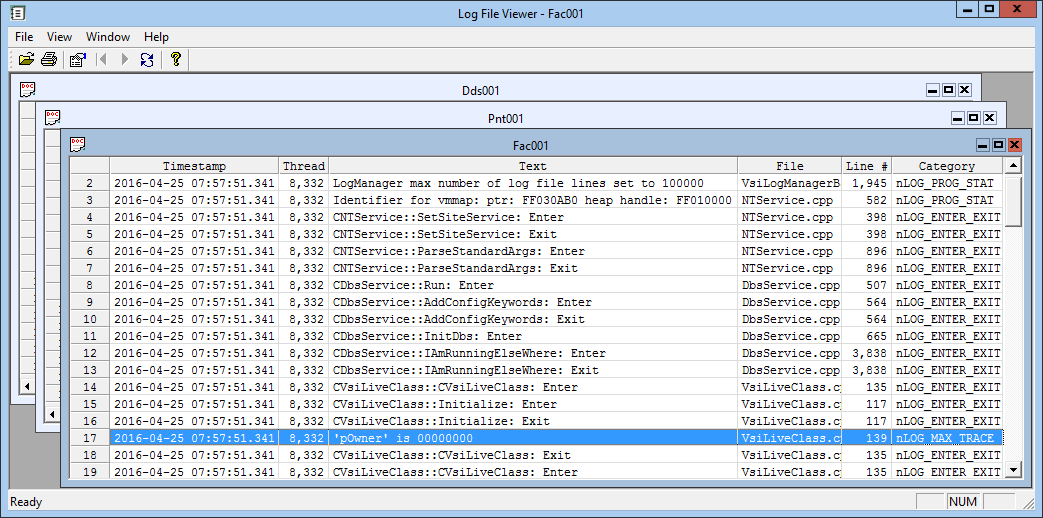
Log file columns are fixed in position but can be adjusted for viewing in the following ways.
- Click on a column header to sort the log view based on that field, in either ascending or descending order.
- Hover over a fixed column edge to display an icon to reset column width. Drag the column to the desired width.
| Option | Description |
|---|---|
|
Timestamp |
The timestamp of the log entry. Log items are initially displayed according to timestamp, from earliest to latest. Click on the column header to sort the displayed data (in ascending or descending order) based on Timestamp. |
|
Thread |
The thread associated with the log entry. Click on the column header to sort the displayed data (in ascending or descending order) based on Thread. |
|
Text |
The text description of the log file. Click on the column header to sort the displayed data (in ascending or descending order) based on Text. |
|
File |
The file associated with the log entry. Click on the column header to sort the displayed data (in ascending or descending order) based on File. |
|
Line # |
The line number from the file associated with the log entry. Click on the column header to sort the displayed data (in ascending or descending order) based on Line #. |
|
Category |
The log category of the entry. Click on the column header to sort the displayed data (in ascending or descending order) based on Category. |
Log File Filter and Display Options
Use the Log File Filter and Display Options dialog box to view a subset of log entries from the displayed log file.
|
Log File Filter and Display Options |
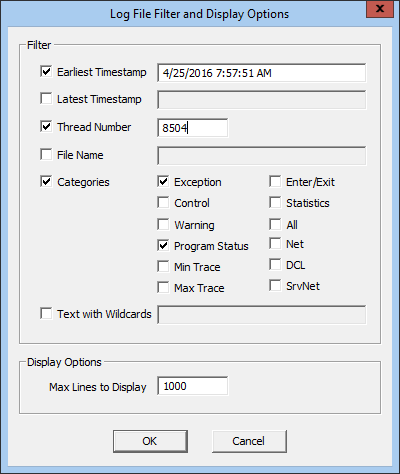
The following table lists and describes the filter options for the Log File Viewer utility. Any combination of these options can be used.
| Option | Description |
|---|---|
|
Earliest Timestamp |
Check and enter the earliest timestamp to be viewed. Result displays selected timestamp entry and those with later timestamps. |
|
Latest Timestamp |
Check and enter the latest timestamp to be viewed. Result displays selected timestamp entry and those with earlier timestamps. |
|
Thread Number |
When selected and thread number is entered, only the log entries associated with that thread number will be displayed. |
|
File Name |
Check and enter a file name from the displayed log file to view all entries associated with that file name. |
|
Categories |
Select categories to display log entries from those categories. |
|
Text with Wildcards |
Use a wildcard to search for text displayed in the log file. |
|
Max Lines to Display |
The maximum number of log entries to display in the Log File Viewer. Default is 1000. |


